Budget conversations are easier when the numbers are already in front of you. EvntEazy gives every event a line-by-line budget that compares what you planned with what was spent, and checks both against the client’s ceiling. This guide shows you how to set one up and read it.
All plansAvailable on every plan, including Free.
Three numbers to know
- Client Ceiling: the most the client wants to spend. It’s the Budget ($) you entered when you created the event.
- Planned Budget: the sum of every line item’s estimated cost.
- Actual Spend: the sum of every line item’s actual cost, once quotes are confirmed or invoices arrive.
If the client’s ceiling changes, click Edit on the event page and update the budget field.
Add your line items
- Open the event and click Manage Budget Items → in the Budget panel.
- Click + Add Budget Item.
- Pick a Category: Venue, Catering, Flowers, Photography, Music, Transport or Other. Categories are colour-coded so you can scan the table quickly.
- Describe the Line Item clearly, for example “Seated dinner & canapés (120 pax)”.
- Optionally choose the Vendor supplying it.
- Enter the Estimated Cost. Leave Actual Cost empty until the price is confirmed.
- Add the deposit and balance details if you know them, then save.
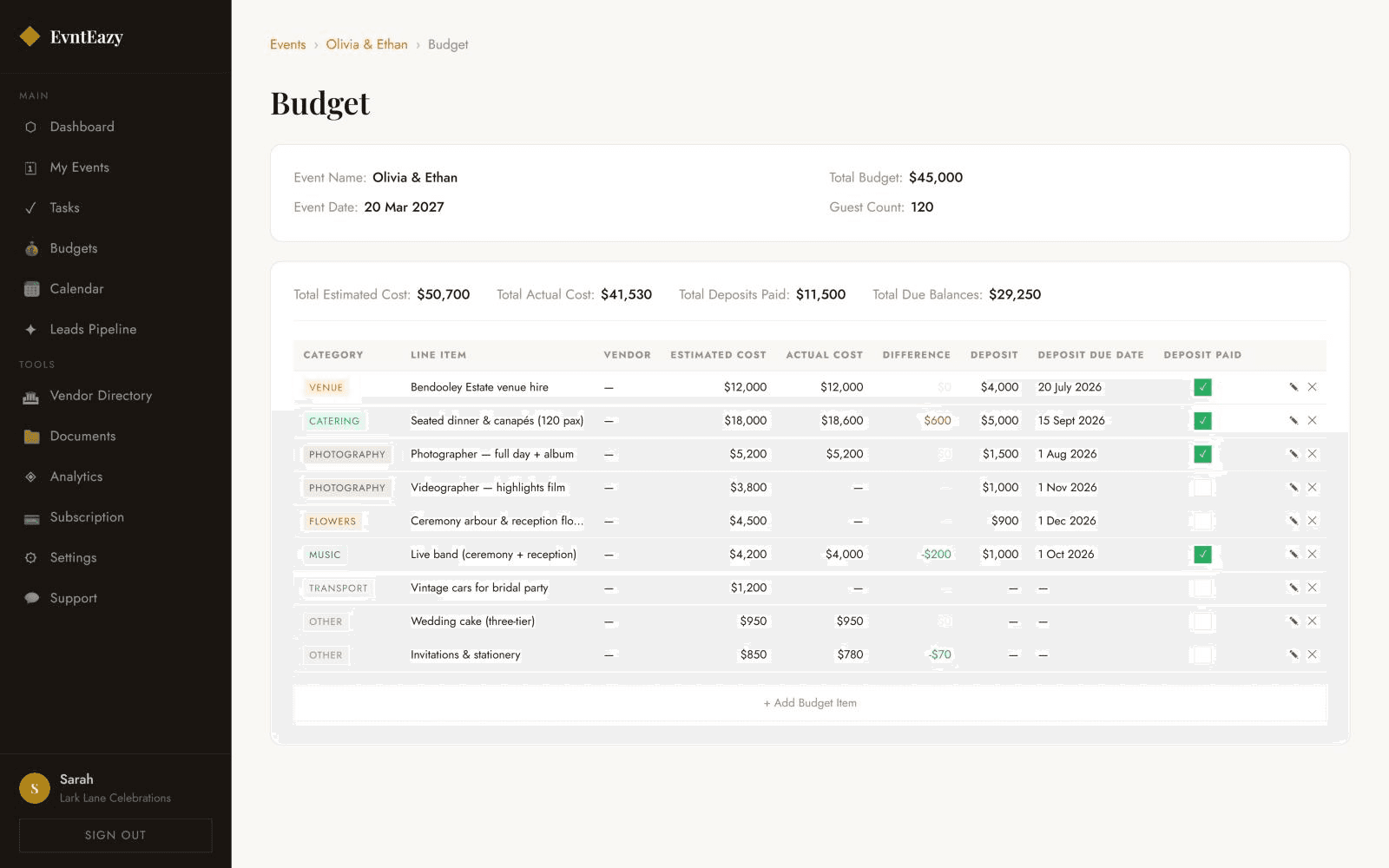
Read the table
Each row shows estimated and actual cost side by side. The Difference column calculates itself: red when a line has come in over its estimate, green when it’s under.
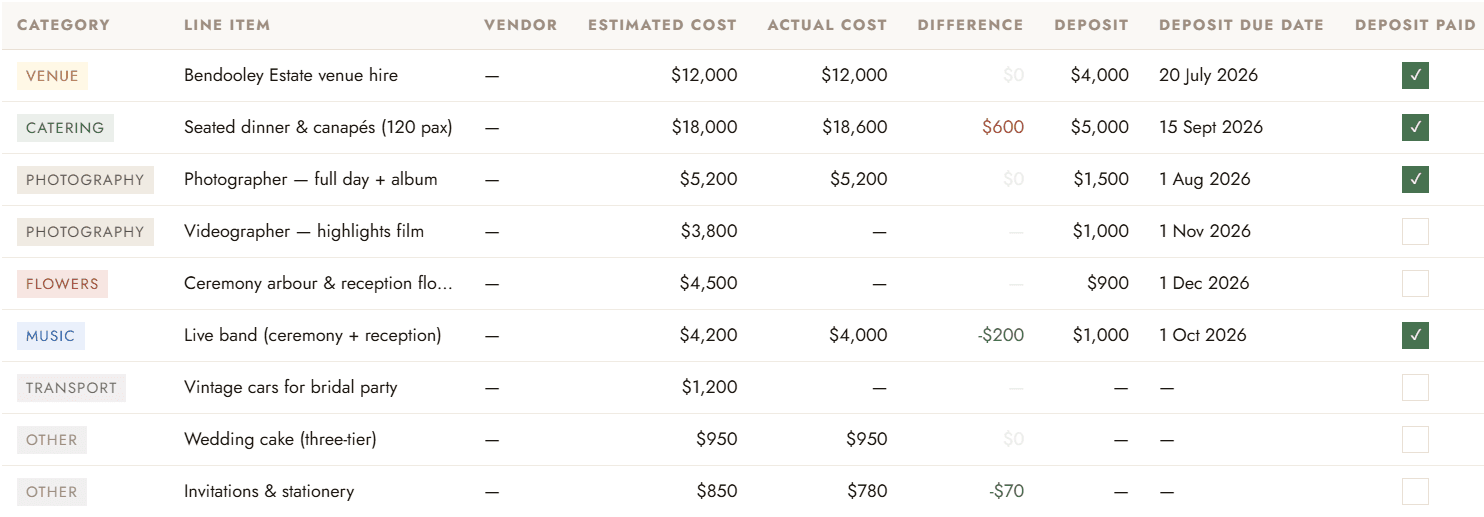
Above the table, four running totals keep the whole picture in view:
- Total Estimated Cost, your planned budget
- Total Actual Cost, your spend so far
- Total Deposits Paid
- Total Due Balances, what’s still owed to suppliers
Stay under the ceiling
Back on the event page, the Budget panel turns these numbers into a ring showing how much of the ceiling you’ve used. EvntEazy warns you, with the amount, in three situations:
- Planned budget exceeds the client ceiling
- Actual spend exceeds the planned budget
- Actual spend exceeds the client ceiling
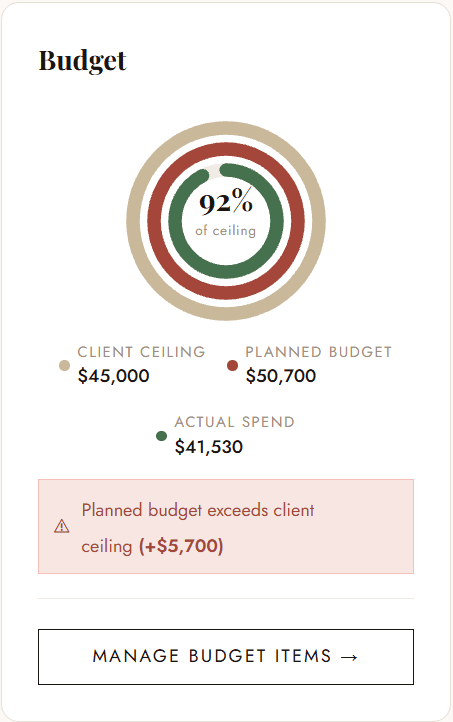
The first warning is the one to act on early. If the plan is already over the ceiling, you can trim options or agree a higher budget with your client before anything is booked, rather than explaining an overspend afterwards.
See every event’s budget at once
Budgets in the sidebar opens the Budget Tracker: every line item across all your events in one table, with the same four totals. Filter by event or category, for example to see all catering costs this season, and use + Add Item to add a line to any event without leaving the page.
Next step
Your budget also drives your payment schedule. Continue with How to track deposits and balances.
Try it on your own events
Explore the live demo with sample data, or start free with one active event. No credit card required.
Questions? Email info@evnteazy.com or use Support in your dashboard. We read every message.